Right now, systems you never authorized are sending email from your domain. Phishing attacks, forgotten marketing tools, vendors your team onboarded last year. You have no way to see it and no way to stop it.
DMARC changes that. It gives you a complete picture of who sends email from your domain, and lets you block the ones you did not authorize.
What is DMARC?
DMARC (Domain-based Message Authentication, Reporting, and Conformance) is an email authentication protocol that builds on SPF and DKIM. It adds one critical check: alignment. The domain authenticated by SPF or DKIM must match the From address the recipient sees.
SPF checks which servers may send for a domain, and DKIM verifies a cryptographic signature. But neither checks whether those domains match the From address the recipient sees. An attacker can pass both while faking the From. DMARC adds that missing check: at least one must match the From domain.
How does it work?
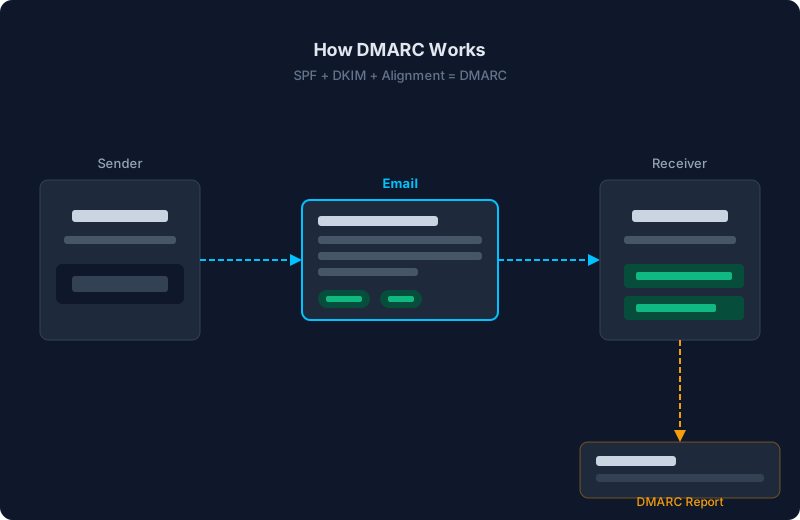
When a mail server receives an email, it runs three checks:
- SPF alignment: Does the sending IP pass SPF, and does the Return-Path domain match the From domain?
- DKIM alignment: Is there a valid DKIM signature, and does the signing domain match the From domain?
- Result: If either passes with alignment, DMARC passes. If both fail, DMARC fails.
The three policies
Your DMARC record tells receivers what to do when authentication fails:
- p=none: Monitor only. You get reports, but failed emails are still delivered.
- p=quarantine: Failed emails go to spam.
- p=reject: Failed emails are blocked entirely.
Start with none. Fix any legitimate senders that are failing. Then move to quarantine, then reject. The goal is always to reach reject.
This is increasingly not optional. PCI DSS 4.0 requires DMARC. Government mandates like BOD 18-01 require federal domains to enforce reject. Large enterprises and partners are starting to require it from their vendors and suppliers. If you work with regulated industries or enterprise clients, moving to reject is a compliance requirement, not just a security improvement.
The DMARC record
A DNS TXT record at _dmarc.yourdomain.com:
v=DMARC1; p=none; rua=mailto:dmarc@yourdomain.com; adkim=r; aspf=r- v=DMARC1 identifies the record
- p=none sets the policy
- rua= where aggregate reports are sent
- adkim=r / aspf=r relaxed alignment (subdomains allowed)
Aggregate reports: the real value
The rua= tag tells receivers to send you daily XML reports. Each report lists every IP that sent email from your domain, how many messages, and whether they passed SPF and DKIM.
This is how you discover senders you did not know about. A new marketing tool your team started using, a compromised server, or an outright spoofing attempt. Without reports, DMARC is protection without visibility.
Setting up DMARC
- Publish a record with p=none. Reports start flowing within 24 to 48 hours.
- Review your senders. Identify who is sending and fix any failing authentication.
- Move to quarantine, then reject. Gradually tighten the policy as you gain confidence.
Mistakes to avoid
- Jumping to p=reject before fixing legitimate senders. You will block your own email.
- Ignoring the reports. The reports are the most valuable part. Without monitoring, you are flying blind.
- Forgetting subdomains. Use the
sp=tag to set a separate subdomain policy. - Skipping third-party configuration. Services like SendGrid and HubSpot need SPF or DKIM setup to pass alignment.
The bottom line
DMARC is the only way to know who sends email from your domain and to stop the ones you did not authorize. Set up a record with p=none today, start reading the reports, and work toward reject. Your domain is either protected or it is not. There is no middle ground.
Keep reading
- A Deep Dive into SPF — how sender authorization works, the 10-lookup limit, and common mistakes.
- DKIM: What It Is and How It Verifies Email Integrity — cryptographic signing, selectors, and third-party setup.
- How to Set Up DMARC for Google Workspace — step-by-step SPF, DKIM, and DMARC configuration.