Before you start
You need access to your domain's DNS settings and a Google Workspace admin account. The process takes about 10 minutes, but DMARC reports will not arrive until 24 to 48 hours after you publish the record.
If your domain already has SPF and DKIM configured for Google Workspace, you can skip straight to step 3. If not, start from the beginning.
Step 1: Set up SPF for Google Workspace
Add a TXT record to your domain's DNS:
v=spf1 include:_spf.google.com ~allIf you already have an SPF record with other includes, add include:_spf.google.com to the existing record. Do not create a second SPF record.
v=spf1 include:_spf.google.com include:sendgrid.net -allStep 2: Set up DKIM for Google Workspace
- In the Google Admin console, go to Apps > Google Workspace > Gmail > Authenticate email.
- Select your domain and click Generate new record. Choose 2048-bit key length.
- Google gives you a TXT record to add to your DNS. It looks like this:
Host: google._domainkey
Type: TXT
Value: v=DKIM1; k=rsa; p=MIIBIjANBgkqhki...- Add the record to your DNS. Wait for propagation (can take up to 48 hours, usually faster).
- Return to the Admin console and click Start authentication.
Step 3: Publish a DMARC record
Add a TXT record at _dmarc.yourdomain.com:
v=DMARC1; p=none; rua=mailto:dmarc@yourdomain.com; pct=100; adkim=r; aspf=rStart with p=none. This enables reporting without affecting email delivery. You will receive aggregate reports from receivers like Google, Microsoft, and Yahoo within 24 to 48 hours.
Step 4: Review your reports
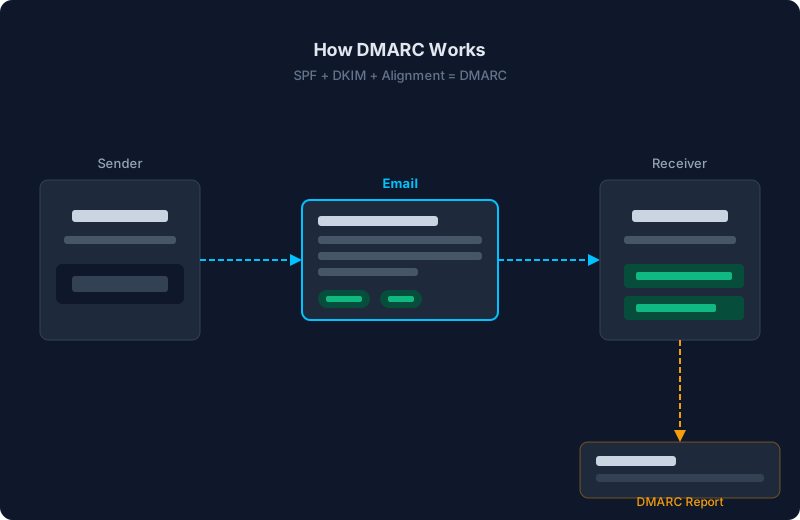
DMARC aggregate reports arrive as XML files. They show every IP address that sent email from your domain, and whether each message passed SPF and DKIM.
Look for:
- Senders you recognize (Google Workspace, your marketing tools, etc.)
- Senders you do not recognize (possible spoofing, or a service you forgot about)
- Legitimate senders that are failing SPF or DKIM alignment
Fix any failing legitimate senders before moving to a stricter policy.
Step 5: Move to quarantine, then reject
Once all legitimate senders pass authentication:
- Change to
p=quarantine. Failing emails go to spam. Monitor reports for a week to confirm nothing breaks. - Change to
p=reject. Failing emails are blocked entirely.
Common issues with Google Workspace DMARC
- DKIM not started. Generating the key is not enough. You must click “Start authentication” in the Admin console after the DNS record propagates.
- SPF alignment fails for forwarded email. When Google Workspace forwards email, the Return-Path changes. SPF alignment breaks, but DKIM alignment still passes if signing is enabled.
- Other senders on your domain. Google Workspace is often not the only service sending email from your domain. Marketing tools, CRMs, and ticketing systems all need their own SPF includes or DKIM configuration.
- Subdomains are not covered. A DMARC record at
_dmarc.yourdomain.comapplies to the root domain. Add a separatesp=tag or publish records for subdomains that send email.